Free Button Click Sounds for Apps, Videos, and More
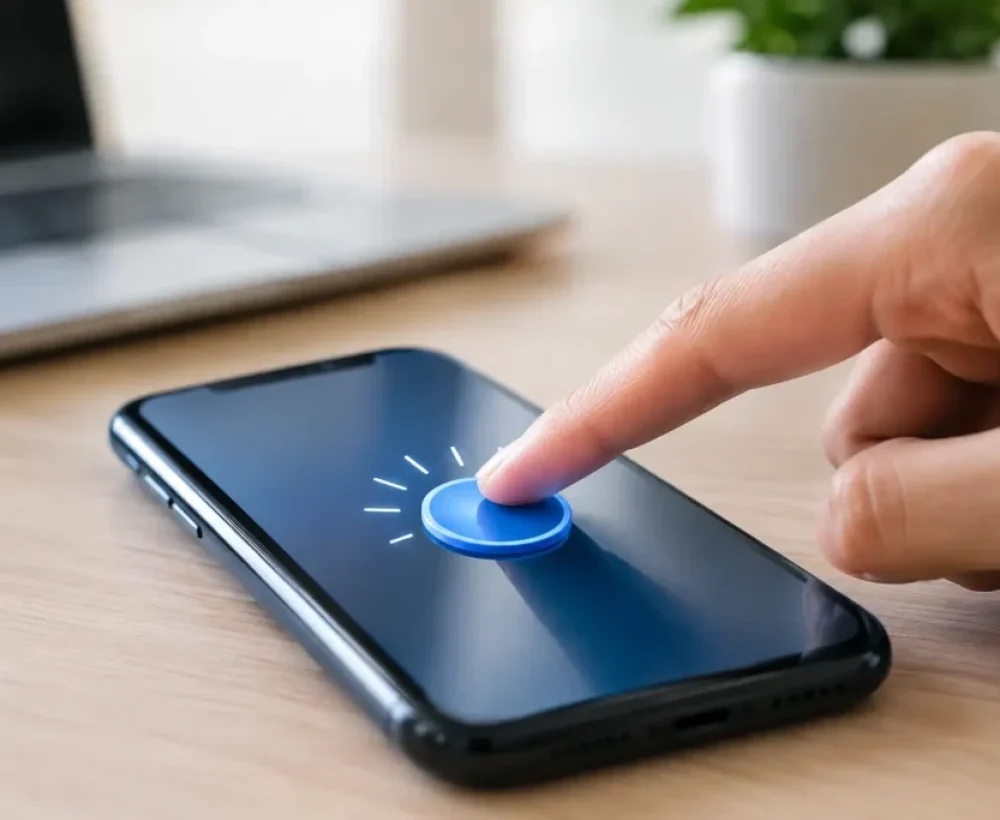
A button can look great and still feel unfinished when it does nothing but change color. A short click gives people a clear signal that their tap worked. Free button click sounds are an easy way to add that little bit of feedback to a phone project, social video, slideshow, game menu, or custom interface.
The best choice is usually not the loudest or most dramatic sound. It is the one that matches what happens on screen. A quick tap works for a small action. A brighter click can make a confirmation feel more satisfying. A softer sound is often better when people may hear it repeatedly.
What Makes a Good Button Click Sound?
A useful button sound is short, clean, and easy to understand. Most clicks work best when they last less than a second. The listener should hear the action without waiting for a sound effect to finish.
Think about the feeling you want the button to create. A light plastic tap feels casual and modern. A keyboard-style click feels practical. A digital blip can work well for games, apps, and tech-themed edits. A heavier switch sound may fit a dramatic video, but it can feel out of place in a simple menu.
Volume matters just as much as the sound itself. A click that is too loud becomes annoying after a few taps. A click that is too quiet can make a button feel unresponsive. If your project has music, speech, or other effects, keep the button sound low enough that it supports the main audio instead of competing with it.
It also helps to avoid sounds with a long echo, large bass hit, or sharp high-pitched ring unless that is the point of the design. Those sounds can be fun for a one-time joke button, but they are tiring in an app or game where users click often.
Where Free Button Click Sounds Work Best
Button clicks are small audio assets, but they can make many types of content feel more active. They are especially useful when the viewer or user needs confirmation that something happened.
For mobile screens and casual app mockups, use a quick, neutral tap. It helps make a screen recording or prototype feel less silent and more believable. If the project has several button types, you can use a slightly different sound for a major action, such as submitting a form or completing a level.
For social media edits, a click is useful when text appears, a product feature is selected, a photo changes, or a menu item gets highlighted. Keep it brief. In short-form video, the click should support the visual timing instead of becoming the main event.
Slideshows and presentations can benefit from subtle clicks too. Use them when revealing a key point, moving through a mock interface, or showing steps in a process. A click on every single slide can feel repetitive, so save it for moments where the sound adds clarity.
Games are another natural fit. Menu buttons, settings toggles, item selection, and pause screens all need feedback. Here, consistency is important. If one menu button uses a soft tap, the rest of the menu should use sounds from the same general style. Random sounds can make a game feel less polished, even when each sound is good on its own.
How to Choose the Right Free Button Click Sound
Start with the action, not the sound name. Ask what the button does. Is it a simple selection? A successful confirmation? A warning? A funny surprise? The answer narrows down the kind of click you need.
A standard selection sound should be fast and neutral. It works for play buttons, menu choices, checkboxes, and basic navigation. A confirmation sound can be slightly brighter or warmer because it tells the person they completed something. For delete, close, or error buttons, a lower or duller sound may make more sense than a cheerful tap.
Next, match the sound to the style of the project. A glossy electronic click may sound right in a futuristic game but strange in a cooking video. A physical mouse click can fit a desktop tutorial, while a soft pop may be better for a colorful phone edit.
Preview sounds with headphones and with regular phone speakers when possible. Tiny clicks can change a lot depending on the speaker. A sound with too much low end may disappear on a phone. One with a harsh high end may feel much louder than expected through earbuds.
If you need more than one sound, choose a small set that feels related. For example, use one sound for normal taps, one for positive confirmation, and one for an error or blocked action. That is enough variety for most casual projects without turning every button into a different noise.
Timing Is What Makes Clicks Feel Real
Even a great sound can feel wrong if it plays late. A button click should happen right when the visual button responds, not half a second after. In a video edit, line the sound up with the exact frame where the button is pressed or the item changes.
For apps and games, immediate feedback is usually best. People expect their tap to produce a response right away. If a process takes longer, use the click at the moment of input, then use a separate sound only if you need to show loading or completion.
Do not stretch a short click to make it last longer. It can create strange digital artifacts and make a clean sound feel cheap. If you need more impact, layer a short pop or soft whoosh underneath it. Keep the layers subtle, especially for repeated actions.
Common Mistakes to Avoid
The biggest mistake is using the same loud click for everything. A button that opens a menu should not have the same huge impact as a button that announces a win, sends a message, or triggers a joke. The sound should reflect the importance of the action.
Another common problem is overusing effects. Click sounds are useful because they are small. When every animation, text change, transition, and button has a sound, the result gets busy fast. Pick the moments that need feedback and let the rest stay quiet.
Be careful with sounds that are strongly associated with a specific device, game, or brand. A familiar sound can be funny in a parody or personal edit, but it may distract from your own project. Generic taps, pops, switches, and digital clicks are more flexible for everyday use.
You should also check the usage details for any audio you download, especially if your video, app, or game will be published publicly or used for business. “Free” can mean different things depending on the source and the project. For personal customization and casual edits, the process is usually simple, but it is still smart to know what is allowed.
Downloading and Using Click Sounds Fast
When you need a sound quickly, search by the feeling or action you need. Terms like “soft click,” “button tap,” “digital click,” “mouse click,” “pop,” or “menu select” can help you find different styles without wasting time scrolling through unrelated effects.
On MingoSounds, preview a few options before downloading. The first sound is not always the best fit. Compare a clean tap, a sharper click, and a softer pop against your video or screen recording. Usually, one will immediately feel more natural than the others.
For phone use, a short MP3 is easy to save and test as a notification-style sound or custom effect. For video editing, place the file on the timeline and lower the volume before making changes. Starting too quiet is better than starting too loud. You can always raise it after you hear it with the rest of the audio.
Keep your final file names organized if you collect several sounds. Labels such as “menu-tap,” “confirm-click,” and “error-button” save time later. It is a small habit that helps when you return to the project after a few days.
A button click may only last a fraction of a second, but it can make a basic action feel clear, responsive, and satisfying. Pick one that fits the moment, keep it short, and let the sound do its job without getting in the way.