Mobile Ringtone Download Guide for Any Phone
Your phone rings in a crowded room, and three other people reach for theirs. A custom ringtone fixes that fast. This mobile ringtone download guide shows you how to find a sound you actually like, download it safely, and set it on an Android phone or iPhone without turning a simple task into a tech project.
The best ringtone is usually short, clear, and easy to recognize. It does not need to be a full song. A funny quote, a clean beat, an animal sound, a classic phone tone, or a quick sound effect can work better because you know right away that it is your call.
Mobile Ringtone Download Guide: Pick the Right Sound
Before you download anything, think about where your phone rings most often. A loud novelty sound can be fun at home, but it may get old quickly at work, school, or on public transit. If you get a lot of calls, choose something pleasant enough to hear more than once a day.
Short clips work best. Around 15 to 30 seconds is usually plenty, and the strongest part of the sound should happen in the first few seconds. A ringtone that starts with a long quiet intro may be hard to notice when your phone is in a bag or across the room.
MP3 is a convenient format for most Android phones and for saving audio files generally. iPhones can play MP3 files, but Apple uses a ringtone format called M4R when you set a custom ringtone. That extra format step is normal, not a problem with your download.
When browsing free ringtone files, preview the audio before saving it. Check the volume, listen for sudden distortion, and make sure the clip ends cleanly. A sound that is funny for two seconds can become annoying when it repeats every time someone calls.
Use sounds you are allowed to use
Personal phone customization is simple, but the source still matters. Download from sites that clearly offer the file for free download and avoid random pop-ups claiming that your phone needs an update before it can save an audio clip. A ringtone download should be an audio file, not an unknown app or a strange installation request.
If you plan to use a sound in a video, stream, or public project, check the usage terms first. A sound that is fine for your personal ringtone may have different rules for commercial content. For a phone alert, stick with free sound libraries, original clips, public-domain sounds, or audio you have permission to use.
Download and Organize Your Ringtone File
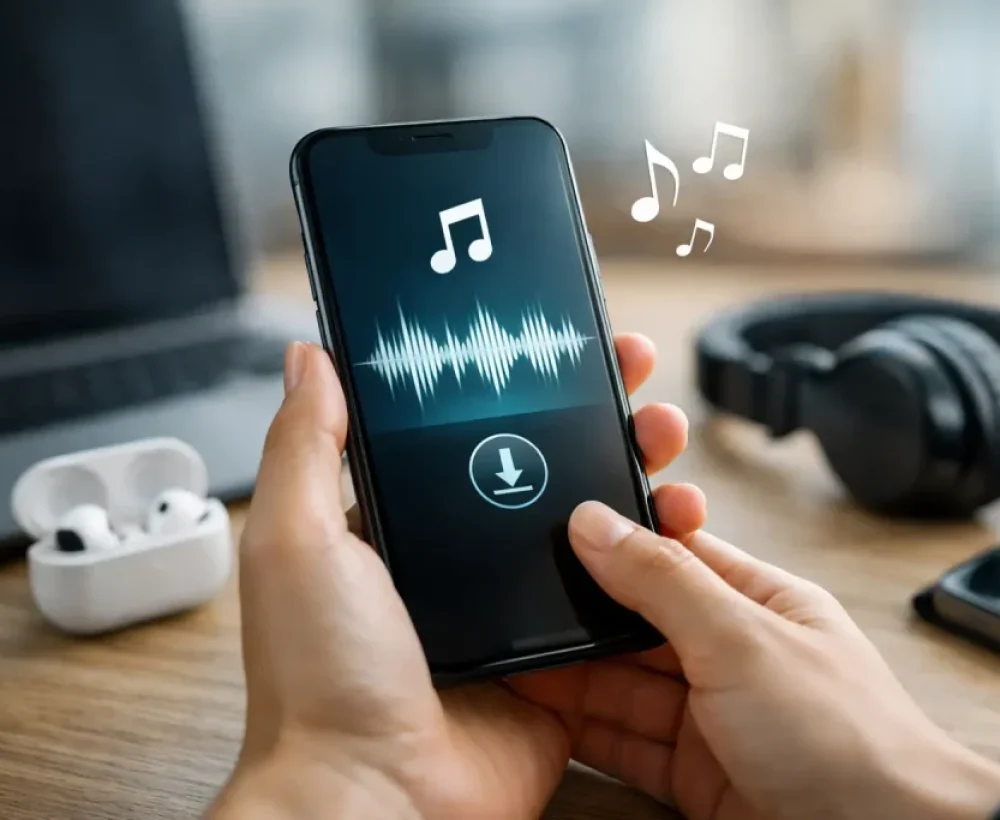
After you choose a clip, download the audio file from your phone browser. Most phones save it in a Downloads folder. Give it a quick listen there before moving on. If it plays correctly, you have the file you need.
File names help more than people expect. Rename a vague file such as `audio_204.mp3` to something clear like `funny-dog-ring.mp3` or `drum-loop-call.mp3`. If you download several options, clear names make it much easier to find the one you want later.
You may also want to trim the clip. Many ringtone files are already short enough, but a 3-minute song or long sound effect needs editing. Use a basic audio editor or ringtone maker to keep the loud, recognizable section. Fade the ending slightly if the clip cuts off abruptly.
Do not chase maximum volume. A file that is pushed too loud can sound harsh through your phone speaker. A clean, medium-loud clip is easier to hear and less likely to make you scramble to silence your phone.
Set a Ringtone on Android
Android makes custom ringtones fairly easy, although menu names can vary by phone brand and Android version. On many devices, you can set the file directly from the Files app or through the Sound settings menu.
First, open the Files app and find the ringtone in Downloads. Tap the file to confirm it plays. Then look for a menu option such as Set as ringtone, Use as ringtone, or More. If that option appears, choose it and confirm whether you want it as your default call ringtone.
If you do not see that choice, open Settings and go to Sound and vibration, Sounds and vibration, or a similar sound menu. Tap Phone ringtone, then look for an add button, plus sign, or option to select a sound from your device. Choose the MP3 from Downloads and save your selection.
Some Android phones let you assign different ringtones to specific contacts. Open the contact, choose Edit, then look for Ringtone or More fields. This is useful for family, close friends, or important calls you do not want to miss. Keep the sound short and distinct so you can recognize it without checking your screen.
Set a Ringtone on iPhone
On iPhone, downloading the sound is the easy part. Setting it as a ringtone usually requires turning the clip into an M4R ringtone file, often with Apple’s GarageBand app on the phone. Apple limits custom ringtones to about 30 seconds, so trim longer clips first.
Save your chosen MP3 to the Files app. Then open GarageBand and create a new audio project. Import the file from Files, trim it to the section you want, and make sure it is no longer than 30 seconds. From the project sharing options, select Ringtone and give the file a clear name.
After exporting, your iPhone should offer an option to use it as a standard ringtone, text tone, or contact tone. If you skip that prompt, go to Settings, then Sounds & Haptics, then Ringtone. Your new custom tone should appear near the top of the list.
This takes a few more taps than Android, but you only have to do it once per sound. The result is a ringtone saved directly in your iPhone settings, ready whenever you want to switch it back on.
Fix Common Ringtone Problems
If your downloaded file will not show up in Android ringtone settings, move or copy it from Downloads into the Ringtones folder in your phone storage. Restarting the phone can also help the system recognize a newly added file.
If the ringtone sounds too quiet, listen to the original file with your media volume up. If it is quiet there too, choose a different version or edit the clip with a small volume boost. Check your ringtone volume separately as well, since media volume and call ringtone volume are often different controls.
On iPhone, a custom file that does not appear in the ringtone list is usually too long, was not exported as a ringtone, or was saved as a regular audio project instead. Return to GarageBand, confirm the clip length, and export it again using the Ringtone option.
Also check Focus mode, Do Not Disturb, and vibration settings before assuming the ringtone failed. Your custom tone may be set correctly, but your phone could be silencing calls at certain times or from unknown numbers.
Keep a Small Ringtone Collection
You do not need 50 ringtones on your phone. Keeping a small set makes customization more useful: one everyday tone, one louder option for busy places, one funny sound for weekends, and a few contact-specific choices if you want them.
MingoSounds makes this kind of browsing simple with categories for ringtones, funny sounds, animal sounds, sound effects, and short beats. Preview a few clips, save the ones that fit your style, and delete the files you know you will never use.
A ringtone is a tiny detail, but it is one you hear at real moments during the day. Pick a sound that gets your attention without making you regret it after the third call. When it stops feeling right, swap it out and keep your phone sounding like yours.